

The previous blog post was all about POSIX permissions, but at certain moment it subtly introduced the term Access Control List (ACL), which was introduced to macOS in the early years of its UNIX incarnation. Being a finer-grained, more flexible and advanced way of controlling file permissions, Access Control List is a perfect topic to continue exploring file permissions in macOS and even more so to dive into another nice feature of FileUtils.
ACL was introduced to macOS in 2005, with the release of Mac OS X Tiger (10.4). In macOS, ACL is the supplement to the POSIX permissions, not separate from it. They both work together to determine who is allowed to do what with files and if both are present ACL takes the precedence. ACL is actually a list (hence the 'L') of access rules, each of which defines an actor (a user or a group defined in the macOS), actions (read data, read attributes, write data…) and a type (whether the actor is allowed or denied the actions). ACL rule is also known as an Access Control Entry (ACE). There may be any arbitrary number of rules in the list for a file, including multiple ones specifying the same actor and action(s). In such case, the rule positioned first in the list wins. It is also quite common that there is no rule specified for the specific actor for a given file, in which case the intended action decision is determined by POSIX permissions.
There are many ACL actions defined, controlling every possible aspect of file or directory read or write access, even differentiating between writing and appending data to a file, or creating a file OR a subfolder. Actions also include certain "administration" tasks, like changing permissions and changing file owner. For directories, "inheritance" settings is also available, allowing a rule to be applied to that directory only, child files, child subdirectories or all descendants in its hierarchy. Such huge granularity is best explained by seeing two screenshots, taken from FileUtils action/permissions popover in the ACL window. This first screenshot shows which actions are available for a file:
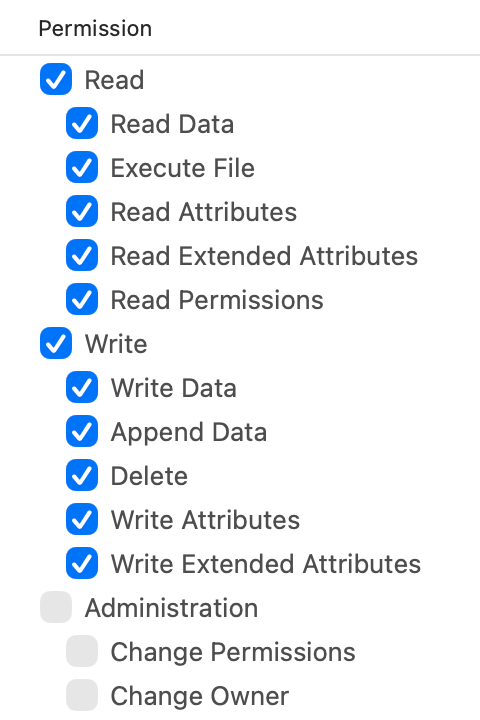
While the following screenshot shows the same for a directory:
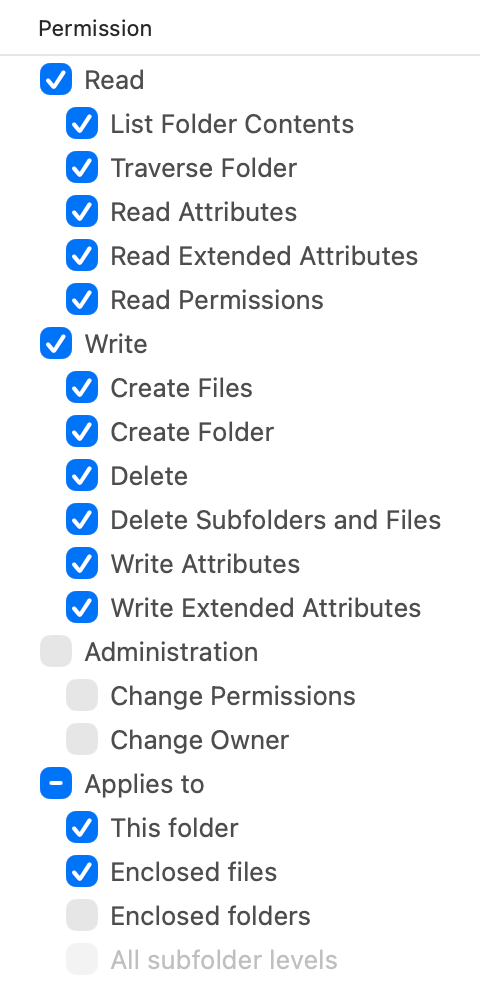
Taking those pictures and all said above into account, it's clear the possibilities for a file permissions control with ACL are practically endless. Each file can have fully controlled access for each action for each user or group in the system. All this may seem completely unnecessary for most macOS users who use their Macs in a single-user mode, but it is essential if a Mac is used by more people under different user's account, or if the Mac is a part of a computers network. It's so essential, that even every user's "home" directory is populated by standard folders (Desktop, Documents, Downloads…) having some ACLs. You can see it yourself, just open the Terminal application and while in your home directory, type ls -le and press ENTER. You will most likely see something like this:
drwx------@  7 username  staff   224 Mar 20 17:59 Desktop

 0: group:everyone deny delete

drwx------@  4 username  staff   128 Nov 25 09:45 Documents

 0: group:everyone deny delete

drwx------@  4 username  staff   128 Nov 27 00:32 Downloads

 0: group:everyone deny delete

drwx------+ 67 username  staff  2144 Apr 11 23:31 Library

 0: group:everyone deny delete

drwx------   5 username  staff   160 Apr  7 13:23 Movies

drwx------+  3 username  staff    96 Nov 10 13:04 Music

 0: group:everyone deny delete

drwx------+  4 username  staff   128 Nov 10 13:09 Pictures

 0: group:everyone deny delete

drwxr-xr-x+  4 username  staff   128 Nov 10 13:04 Public

 0: group:everyone deny delete
Those 0: group:everyone deny delete are ACL rules effectively preventing everyone (yourself included) from deleting those directories (unless you escalate and do so as "superuser (root)").
There is one more situation, in which you may be using ACL without even knowing. If you invoke Get Info window on a file, you'll see the "Sharing & Permissions" section, showing access rights for the file. The previous blog post mentioned that section not exposing the raw bitmask of POSIX permissions, so one cannot directly manipulate particular permission bits. With introduction of ACL, Apple actually "hid" some of its functionality behind this section in the Get Info panel. You can click the "+" button below the list and add a new access rule. That will result in actually adding ACL rules to the file. You can easily confirm that by going back to terminal and execute ls -le _FILEPATH_ command. You will see freshly added ACL entries with structure similar to those in your home directory, but this time matching permissions you've just set in the Get Info panel.
The intention of this post is not to really explain everything there is about ACL. There are many resources available on the Internet, telling you all you need to know about it. The intention is to point that Apple never really cared much to provide some nice UI to utilize the full power of ACL. It's possible in terminal, but isn't the point of a nice UI to make work (and life) easier and more intuitive? The "Sharing & Permissions" section in the Get Info panel allows for only two access levels, "Read & Write" and "Read only", each of which translates into appropriate combination of actions seen in the screenshots above. That may be enough for most users, but not if one wants to take full control of who and how can access a file. The full, powerful UI for controlling ACL was available in Mac OS X Server, something Apple was offering back in the day it still had some server market ambitions. Mac OS X Server started dying slowly with the introduction of OS X Lion back in 2011, since when instead of being offered as a full separate operating system, it turned into an server add-on application (named simply "Server") for regular macOS and sold through the Mac App Store. Sadly, that add-on application got crippled in functionality with each subsequent release, until being finally discontinued in 2022.
So, it all came down to 3rd party application. And FileUtils does a very good job in it. It unleashes the full power of ACL in a very nice and functional UI. Moreover, it has additional Effective Access tab, which shows effective file access (allow or deny) for every possible action for a selected user in the macOS. And I find it also being a very nice learning tool for people just introduced to ACL. One can read vast documentation, but the full flexibility and how fine-grained the concept is can be grasped only when applying it through different examples. FileUtils is perfect for that, because whatever changes you make to the ACL, it won't be applied to a file immediately, only if you specifically decide to "save" it.
With that in mind and if you're interested more in a powerful world of file ACL without going into terminal, launch FileUtils, invoke "Access Control List" window for a file from Finder's contextual menu and play by adding and removing ACEs and modifying their actors, actions and type. And maybe, through such game, you will realize that ACL might be much more useful to you than you initially anticipated.