

FileUtils functionality revolves around Finder Sync extension embedded in the containing application bundle, conveniently named FileUtilsSync. The extension is responsible for showing FileUtils-related menu items in Finder contextual and toolbar item menus, but it can do some other things, like displaying badges on file icons shown in Finder. In order to do all this, the extension needs to be told which folders to monitor. Once told, the extension will be notified every time Finder enters and exits any folder in the hierarchies of monitored folders. It will also be asked to show its menu items or draw its icon badges, for each item in the monitored hierarchies. However, the extension may decide not to show any of it. That decision is up to a developer and the containing application scope.
Non-sandboxed variant of FileUtils monitors root folders of all volumes mounted at the time of application launch. Additionally, it automatically starts monitoring the root folder of each newly mounted volume. Sandboxed variant needs monitored folders set by a user. It requires explicit grant by the user to access certain files, so in this case that's conveniently merged with setting monitored folders for the embedded Finder Sync extension. But what if we have more applications embedding Finder Sync extension? There's no limitation to which folders a developer can set to be monitored, so it's quite possible to have the same folders monitored by multiple extensions. The question arises of how two, or more, extensions show their respective menu items and icon badges in Finder for the same monitored items? Can we experience some collisions there?
As a case study, we will use FileUtils and another application with embedded Finder Sync extension, GitFinder. Let's assume we set both applications to monitor the same folders, either as an intersection of two different sets, or as two identical sets of folders. Both extensions are registered with macOS and enabled in System Settings/Preferences. After navigating in Finder to some folder monitored by both extensions and showing contextual menu for some item, we would see something like in the picture below:
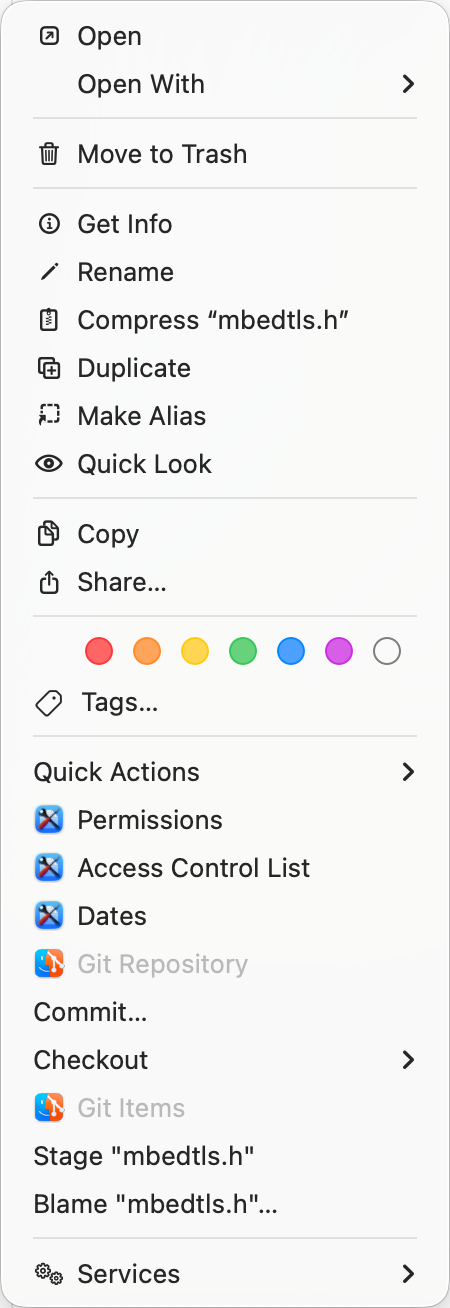
We can see both extensions showing their own menu items. These menu items are not intermixed but grouped separately. In this case menu items from FileUtils come first, followed by those from GitFinder. One may wonder why FileUtils comes first? In order to come to any conclusion, let's experiment a bit. We'll open the System Settings application, navigate to General > Login Items and Extensions > File Provider Extensions (this may differ depending on macOS version, like explained in this blog post) and there we see two extensions, FileUtils and GitFinder, both registered and enabled, like in the picture below:
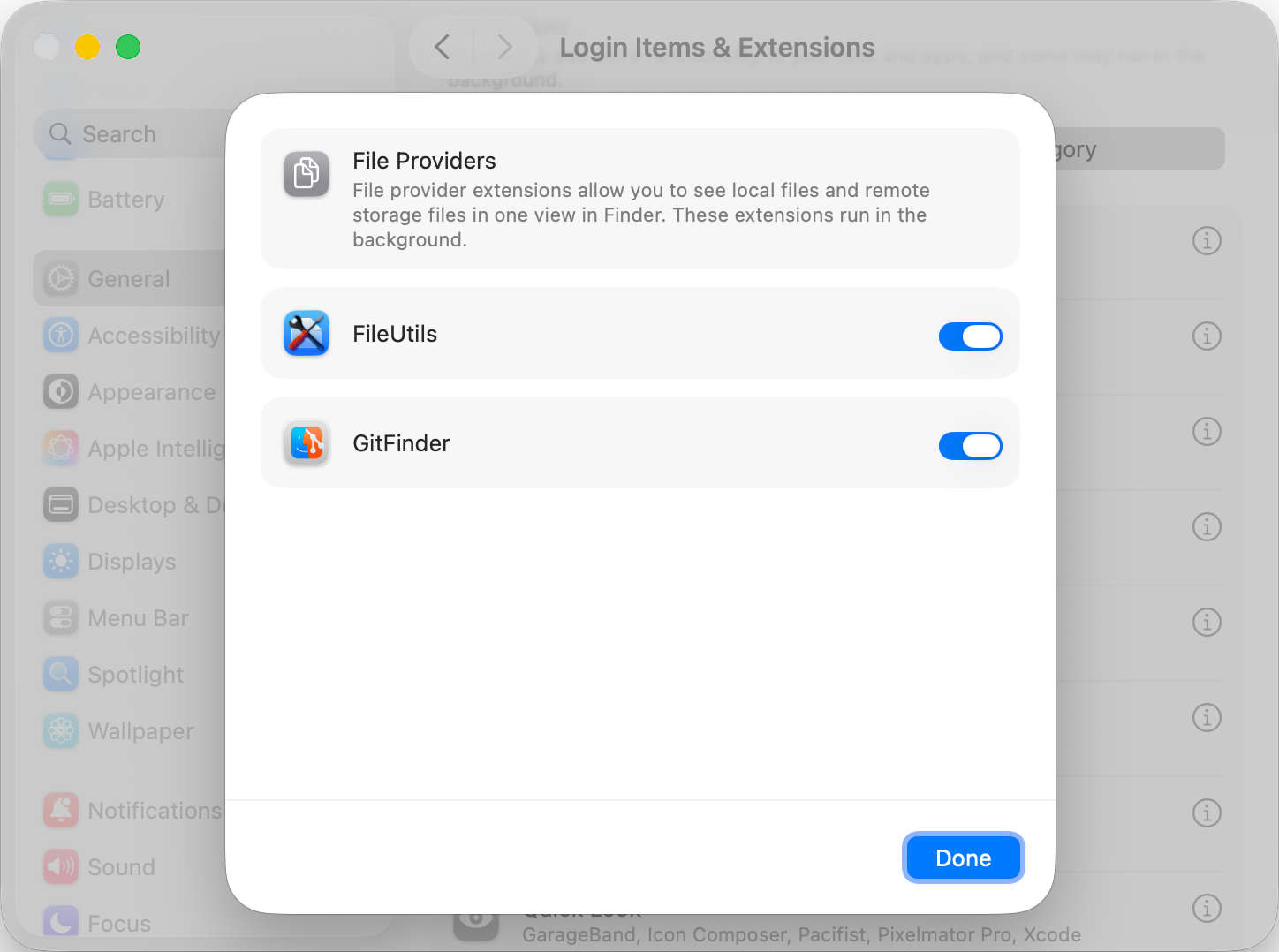
Let's first disable FileUtils extension by setting its switch to OFF, then immediately enable it again setting the switch back to ON. Going back to the same folder in Finder and invoking contextual menu shows something has changed, like in the picture below:
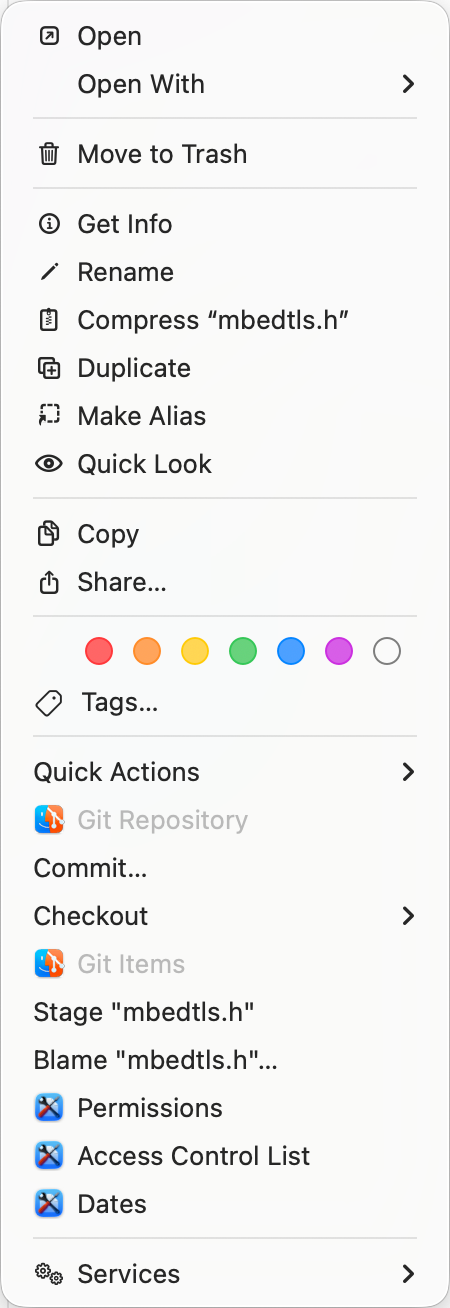
We still see menu items from both extensions, but now menu items from GitFinder precede those from FileUtils. What we actually did is we changed the order in which Finder Sync extensions were registered with macOS. By setting FileUtils switch to OFF and then back to ON, we ensured GitFinder was registered before FileUtils. And that translates into the order of menu items in the contextual menu.
The conclusion regarding menu items is clear; menu items coming from Finder Sync extensions appear in order the extensions were registered. Extension registration happens during user login (for already existing extensions), or on application first launch (for newly installed extensions) and the order of registration is nowhere documented and isn't guaranteed. Going into technical details, extension provides its menu items by responding to the menuForMenuKind: message. The extension must implement a method with the same name in order to respond, but it can also skip the implementation if no menu items are to be shown. Each registered extension receives a menuForMenuKind: message in registration order, which is why menu items appear grouped by extension and in that sequence.
What about another visual representation of Finder Sync extension, icon badges shown in Finder? Menu items are a simple case, there can be an arbitrary number of menu items in the contextual menu, there's no problem for each extension to show them. But this obviously is not the case with icon badges. There can be only one badge per icon, so which one will it be? Our experiment with menu items suggests that the first registered extension will show its icon badges and the rest will simply fall out. And that's the correct assumption. But there is a twist to that. Let's go back to where we left in our example, GitFinder being registered before FileUtils, due to our intervention with the switch in System Settings. Take a look at the folder contents in Finder and we will see something like in the picture below:
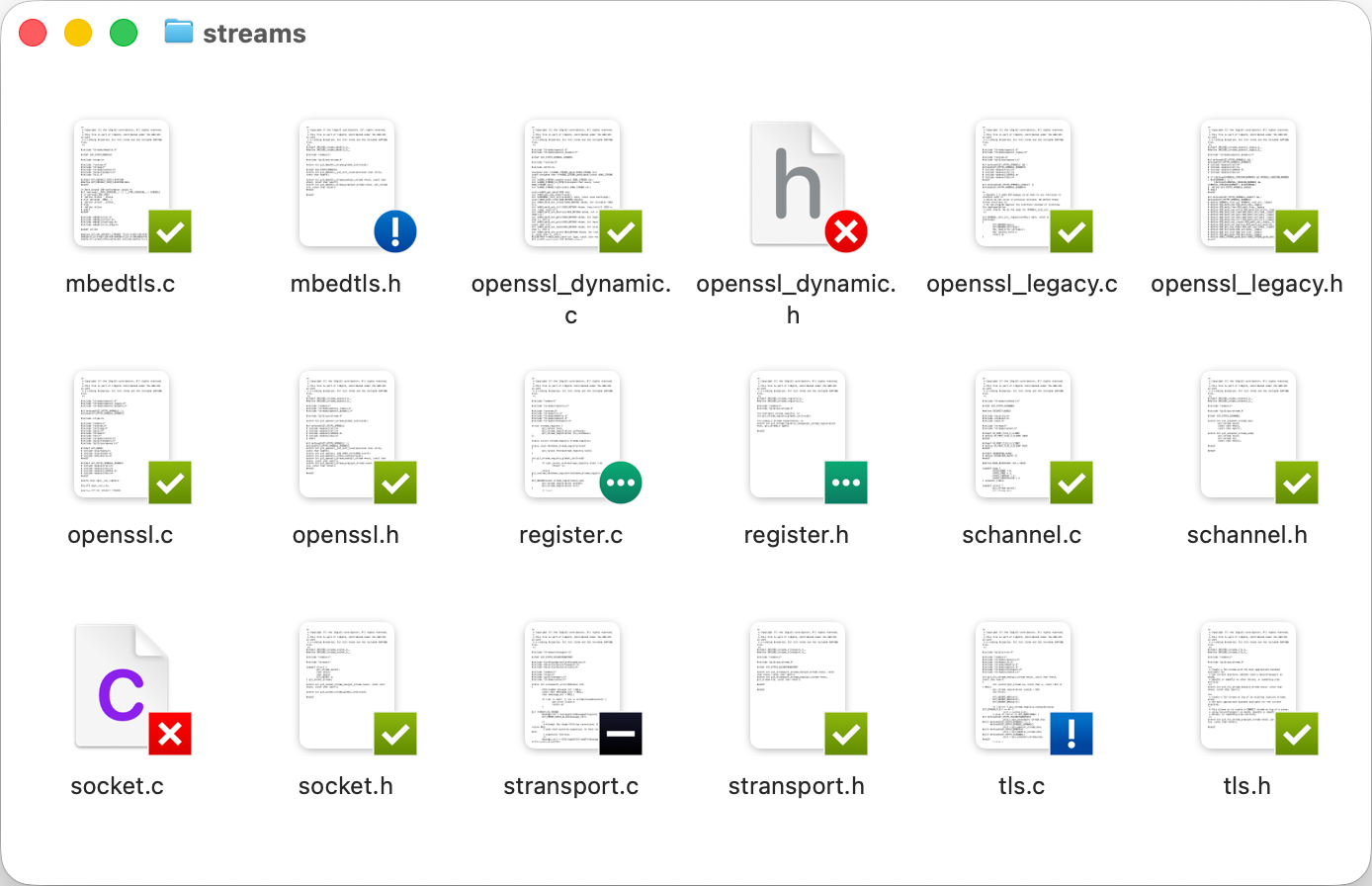
GitFinder's extension shows icon badges for items in folders monitored by it. Those badges are used to signal git status of items in containing repository. On the other hand, FileUtils doesn't show any badges, because there simply isn't any need to signal anything related to FileUtils. Since GitFinder is the first one registered with macOS, we confirmed our assumption about which icon badges are shown. Let's go back into "Extensions" settings and now toggle GitFinder extension by setting its switch to OFF and then immediately back to ON. Now we ensured FileUtils is registered before GitFinder and let's see if that changed something regarding icon badges. Going back to contents of the same folder in Finder shows something like in the picture below:
There are no badges! If FileUtils showed icon badges, we would see those. But since FileUtils deliberately decided not to show any badges, one would expect to see icon badges of the next extension in the registration queue, GitFinder. However, there are no icon badges at all. And that is the twist mentioned earlier. Just like with menu items, extensions registration order defines precedence for showing icon badges. Since there can be only one badge per icon, only the first registered extension will have a chance to show its badges. What's interesting is if the "first" extension decides not to show any badges, that doesn't open the door for the next one to take over. It's like Finder saying to the "first" extension "hey, you're the first so take the prize. If you decide not to, it won't be given to anyone else!"
Going again into technical details, Finder Sync extension is asked to provide a badge for the item by receiving requestBadgeIdentifierForURL: message. The extension responds to the message by implementing a method of the same name, but it can also skip the implementation if no icon badges are to be shown. Contrary to the case with menu items, only the first registered extension will be sent this message, the others never get asked at all, even if the "first" extension doesn't respond. In this case, only FileUtils extension receives the requestBadgeIdentifierForURL: message. FileUtils has nothing to show and doesn't reply, but the message is never passed down the line. The consequence is having no icon badges in the Finder window, even though GitFinder would eventually want to show some.
This is a clear collision between multiple Finder Sync extensions monitoring the same folders. It was brought to my attention by some support tickets coming from users of either FileUtils or GitFinder (or both) and it made me explore it and figure out how the whole system works. Now that we identified a potential problem, we need a solution to it. Menu items aren't that critical, we're guaranteed they all will be shown. Only if we want them shown in a particular order, we need to change the order Finder Sync extensions are registered. Situation is not so bright with icon badges though. We cannot have more badges per icon, so if we have more extensions wanting to show badges, we have to pick our priority and make sure that one is the first to be registered.
We can't control the order of extensions registration during login. But we can reorder it later. Going into System Settings and toggling switches is always an option, but that's slow and tedious. Luckily, pluginkit command line tool comes to the rescue. It can be executed to (un)register any extension, including Finder Sync ones, which is what we care about here. It can be executed in the terminal, but in this case it's much better to automate things.
Create a simple bash script which firstly unregisters all existing Finder Sync extensions by executing pluginkit command, then register the same extensions one by one in the exact order you want, again executing pluginkit. Set the script to run every time after login (using cron or any other tool of your preference, which can run the script after login). Additionally, you can run the script manually after installing a new application with embedded Finder Sync extension, just to be sure your desired registration order is intact. pluginkit man page explains more about how to use the command in the script. To get you started quickly, these are particular commands you will need:
- Command
pluginkit -mAp com.apple.FinderSynclists all Finder Sync extensions currently present in the system. Matching our screenshot of the System Settings application above, the list would look something like:+ ag.zigz.GitFinder.GitFinderSync(1.7.11)
+ ag.zigz.FileUtils.FileUtilsSync(1.6.2)
Preceding+signals enabled (registered) extension. - Once you have such list, to disable e.g. FileUtils extension, use command
pluginkit -e ignore -i ag.zigz.FileUtils.FileUtilsSync - To enable FileUtils extension back use command
pluginkit -e use -i ag.zigz.FileUtils.FileUtilsSync
The rest is up to you. Happy scripting!